


Loom – Screen and Cam Recorder
3.2441.00 Reviews
App Specs
- Version
- 283.1.0
- Updated On
- License
- Free
- Downloads
- 1,000,000+
- Developer
- Loom, Inc
- Categories
- Business
- Platform
- Android, iOS
Screenshots
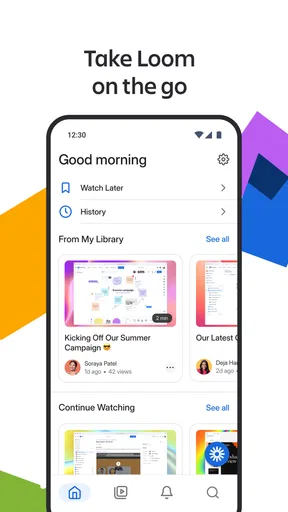

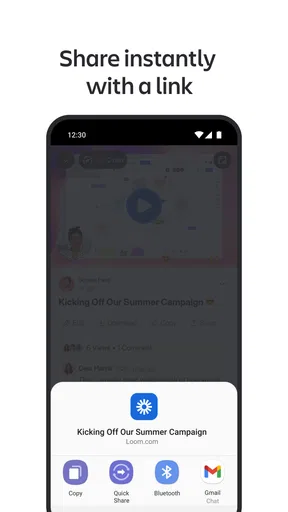
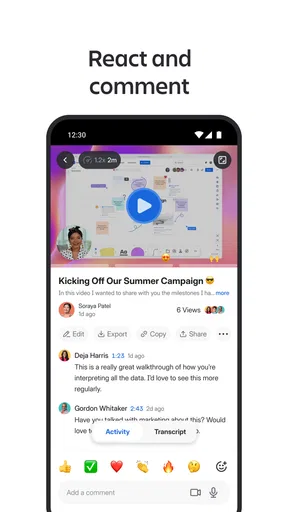
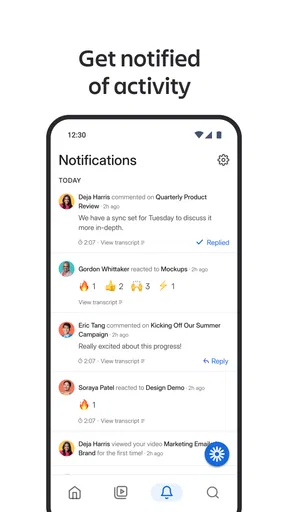
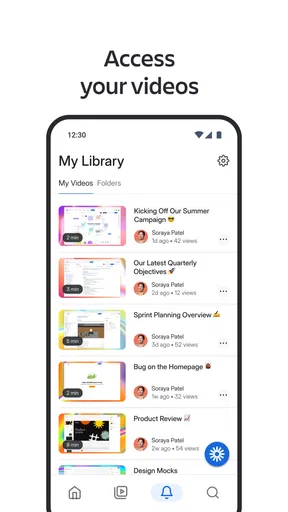
 Analysis by AppCompare
I use screen-recording tools when a written explanation feels too slow, especially when I need to show a colleague exactly what happened on my phone. Loom is built around that situation: it lets me record content on the go and share the result with a team instead of turning every small question into a meeting. After spending time with it, I see a useful business app with a clear purpose, although its value depends heavily on how comfortable you are with account-based collaboration and sharing recorded material.
This is a free app in the Business category from Loom, Inc. It is available for Everyone, runs on Android 10 or later, and the current version is 283.1.0. The app has passed one million installs, with an average rating of 3.2 from around 5,600 ratings and 441 written reviews. Those numbers suggest a product people find useful but not universally smooth, which matches my impression: the main recording idea is easy to understand, while the surrounding workflow deserves more attention before you make it part of your daily routine.
What Loom feels like when you use it for real work
I find Loom most useful when I treat recording as a quick, deliberate handoff rather than something that should happen automatically. The practical test is whether the visual sequence will save the viewer time without capturing more than the task requires. That balance becomes especially important when several recordings are made in a busy workday, so next I look at what can make heavier use feel less effortless.
A practical alternative to another meeting
The strongest use case is asynchronous communication. Instead of typing, “Click this menu, then choose that option,” I can record the screen while demonstrating the steps. A teammate can watch when convenient, pause at the important point, and return to the recording later. That is more expressive than a long message and less disruptive than arranging a call for a problem that takes only a few minutes to explain.
I also find the camera element helpful when tone matters. A short introduction from my face makes a technical explanation feel less abrupt, while the screen remains the main evidence. I would not use that style for every message, but it works well for feedback, walkthroughs, handovers, and quick status explanations where a purely screen-only clip might feel cold or confusing.
A realistic example is a support handoff. Imagine that I reproduce a customer issue inside an app and need another person to investigate it. I can record the path I took, show the visible result, and explain what I expected to happen. That gives the recipient context that screenshots often miss. The trade-off is that I must review the recording before sharing it, because a screen capture can expose unrelated notifications, account details, open tabs, or private messages.
The first habit I would build
Before pressing record, I decide what the viewer actually needs. I close unrelated apps, remove distracting windows, silence notifications where possible, and prepare the exact page I want to demonstrate. This is not just about looking professional. It is a basic privacy measure. A recording preserves everything visible during the session, so preparation gives me more control than trying to fix an accidental disclosure afterward.
Worth Reading Before You Choose

EA SPORTS FC Mobile 26 Is a Bigger Football Game, but It Takes Time

Flipboard Shows What News Apps Must Do Beyond the Feed

Switching to Android Auto Means Rethinking Your Driving Routine

Google Calendar Makes a Crowded Week Easier to Manage

Ludo King Makes the Most of the Minutes Between Plans

Baby Panda World Brings Quick Play to Modern Phones, but Its Game Library Feels Busy
I also keep recordings short and focused. Loom makes it tempting to explain every background detail in one take, but a viewer usually benefits more from a clear opening, a direct demonstration, and a brief conclusion. If the subject is complicated, I prefer separate clips for separate tasks. That makes the content easier to revisit and reduces the amount of unrelated information stored in one recording.
Where the mobile format helps
The mobile version makes sense when the evidence exists on the phone itself. I can demonstrate a mobile interface, capture a problem that appears only on a handset, or explain something while away from my desk. That mobility is the app’s practical advantage over desktop-only recording workflows.
However, I would not treat a phone as a full replacement for a desktop setup. A larger screen, physical keyboard, and more deliberate workspace are still better for polished tutorials, long demonstrations, and material that needs careful editing. Loom is most convincing as a fast communication tool, not as a complete production studio for elaborate training videos.
How it compares with familiar alternatives
Compared with screenshots, Loom communicates motion, sequence, and voice. That matters when the problem is not simply where a button is, but how a process unfolds. Compared with a written message, it can reduce the effort needed to describe visual details. Compared with a live video call, it lets the recipient choose the viewing time and keeps a record that can be replayed.
The alternatives still win in specific situations. A screenshot is better when one static detail is enough and I do not want to create a recording. Text is better for searchable instructions, exact values, or a decision that should be easy to quote later. A meeting is better when the issue requires immediate back-and-forth discussion. Loom sits between these options: richer than text, less demanding than a call, but more sensitive than either to what appears on screen.
Trust starts before the recording
Because this app handles screen and camera content, I judge it differently from a simple notes tool. The useful question is not only whether it records successfully, but whether I can make deliberate choices about what I capture, who receives it, and how long it remains part of my work history. I avoid assuming that convenience automatically means privacy, so I treat every recording as material that needs an owner and a clear audience.
The developer is Loom, Inc., and the app has been available since March 18, 2021. Its free price lowers the barrier to trying the workflow, but I would still read the in-app sharing and account options carefully before introducing it into a sensitive business process. A free download does not remove the need to understand where a recording is going or which people can access it.
Permissions and visible choices matter
When I use a recorder, I pay attention to the operating system prompts for screen capture, microphone access, and camera access. I grant only what the task requires. For a silent demonstration, I would not enable the microphone simply out of habit; for a face-to-camera explanation, I would check that the camera is actually intended to be part of the message. These choices should be made at the moment of recording, not treated as invisible background settings.
I also check the recording preview before sharing. This is one of the most important controls in practice because it lets me catch accidental exposure: a password manager, a personal conversation, a customer name, or a notification banner can appear for only a second and still become part of the file. A quick review is a small cost compared with having to explain why unrelated information was included.
The most useful privacy control is often the pause before sharing. Loom can make communication feel instant, but I do not interpret speed as a reason to skip inspection. I name the recording clearly, confirm its audience, and ask whether the recipient truly needs the whole clip. If not, I trim my explanation conceptually by recording a new, narrower version rather than sending a broad tour of my screen.
Handling sensitive moments on a phone
Mobile screens are especially unpredictable. Notifications can arrive while I am recording, and switching between applications can reveal more than I planned. I avoid recording banking, health, identity, password, or private messaging screens unless the task genuinely requires it and I have prepared the environment carefully. Even when the recipient is trusted, the recording itself becomes a separate copy of what was visible.
For work involving customer information, I prefer using sample records or redacted content. This is a better workflow than relying on a verbal warning at the beginning of the video. A viewer may remember the explanation but still be able to pause on a sensitive frame. I also avoid including unrelated conversations in the camera or screen area, since context can be revealing even when no single field looks important.
Another practical tip is to narrate the boundary of the demonstration. I might say that I am opening only the settings page and will not enter account details. That helps the viewer understand the scope, but it is not a substitute for keeping private content off-screen. Spoken reassurance cannot remove information that has already been captured.
Account control and sharing discipline
The app is most useful when recordings are part of a team workflow, so account and sharing decisions deserve the same care as the recording itself. I use a consistent naming pattern that includes the project and purpose, not unnecessary personal information. Clear names make it easier to identify old material and reduce the chance of sending the wrong clip to the wrong person.
I would also separate audiences mentally: a private draft, a direct message to one colleague, and a recording intended for a wider team are not equivalent. Before sharing, I check the visible recipient or destination rather than assuming the last-used choice is still appropriate. This is a simple habit, but it protects against one of the most realistic mistakes in fast collaboration: reusing a link or audience without noticing the difference.
When a recording is no longer needed, I look for the available account controls to manage it instead of allowing a growing archive to become accidental storage. I do not treat deletion or access changes as something to postpone indefinitely. The more recordings I create, the harder it becomes to remember what each one contains, so a small cleanup routine is worthwhile.
Where the workflow can become frustrating
The average rating of 3.2 indicates that the experience has room for improvement, and I can understand why some users may feel friction. A recording tool is judged at a stressful moment: when a bug appears, a deadline is close, or a colleague needs an answer immediately. Any uncertainty around sign-in, permissions, recording state, upload progress, or sharing can make the whole process feel heavier than expected.
There is also a difference between “easy to record” and “easy to manage.” Capturing a clip may take little effort, but organizing several clips, deciding which ones are still relevant, and keeping access intentional requires discipline. Teams that already have a crowded collection of chat messages and cloud files may find that Loom adds another place to monitor unless they agree on naming, ownership, and cleanup habits.
I would not choose it for highly edited public content, cinematic presentations, or situations where every frame must be controlled. A dedicated video editor is better for that work. I would also skip it when the explanation can be delivered in one precise sentence or a single annotated image. Recording is not automatically more efficient; it becomes efficient when the visual sequence is the message.
Who should use it and who should be cautious
I recommend Loom to remote teams, support staff, product testers, trainers, and anyone who frequently explains software behavior. It is particularly useful for people who lose time writing detailed instructions for interfaces that would be obvious in a live demonstration. It can also help managers give more personal feedback without scheduling a call for every small review.
I am more cautious about recommending it to people who rarely share screen content, work almost entirely with confidential information, or need a searchable written knowledge base. Those users may get better results from documentation, screenshots with redaction, or an approved internal collaboration system. The app can still be useful, but the preparation and governance burden may outweigh the convenience.
For families or casual users, the Everyone age rating makes the app broadly approachable, but its real design is professional communication. I would explain the difference to a new user: it is not merely a camera shortcut. Its value appears when a recording has a clear recipient, purpose, and follow-up action.
My recommended routine for reliable use
Write down the single question the recording should answer.
Prepare the phone by closing unrelated screens and checking notifications.
Choose microphone and camera access based on the message, not by default.
Record a short opening, demonstrate the task, and stop instead of filling silence.
Review the entire clip for private information, confusing sections, and the correct audience.
Share it with a clear title and remove or manage it later when the work is finished.
This routine addresses the main trade-off I see in Loom: it saves explanation time, but it shifts some responsibility toward the person recording. The app can make the capture fast; it cannot decide whether the visible content is appropriate, whether the recipient needs access, or whether a written note would be safer and clearer.
My cautious verdict
I like Loom most when I use it as a focused visual message rather than an automatic replacement for every form of communication. It solves a real problem: showing a process is often easier than describing it, and asynchronous video can spare a team an unnecessary meeting. The mobile format adds genuine value when the relevant screen exists on a phone or when I need to communicate away from a desk.
My recommendation comes with conditions. I would test the recording, permission, account, and sharing flow with non-sensitive material first. I would then establish simple team rules for titles, audiences, review, and cleanup. Those steps make the app more trustworthy in practice because they preserve user choice instead of letting speed dictate what gets captured.
At no cost, Loom is worth trying for people who regularly explain software, report problems, or give visual feedback. I would not install it merely because recording sounds convenient. If your work involves private screens, decide first whether your organization permits this kind of workflow and whether the available controls match your needs. Used deliberately, it is a capable business communicator; used carelessly, it can turn a quick explanation into a permanent record of far more than you intended.
Pros
- Records screen and camera together for clear video messages.
- Simple sharing links make it easy to send recordings instantly.
- Supports quick editing
- including trimming and removing unwanted sections.
- Useful viewer notifications can show when recipients watch your recording.
- Works well for async work
- tutorials
- feedback
- and team updates.
Cons
- Some advanced features require a paid Loom subscription.
- Recording quality and upload speed depend heavily on your connection.
- Long or high-resolution recordings can use significant storage and data.
- The mobile app offers fewer editing options than the desktop experience.
- Privacy settings must be checked carefully before sharing recordings publicly.
FAQs for Loom – Screen and Cam Recorder
What is Loom – Screen and Cam Recorder used for?
Loom is a video-recording and sharing app designed for creating quick screen recordings, webcam videos, or both at the same time. It is useful for explaining software problems, presenting ideas, giving feedback, recording tutorials, and communicating with colleagues or clients without scheduling a meeting. After recording, you can usually share the video through a link rather than sending a large video file.
Can I record my screen and camera together on Android or iOS?
Loom supports recording workflows that combine screen activity with a camera view, although the exact options can depend on your device, operating system version, app permissions, and Loom account or plan. Before recording, you should allow access to the microphone, camera, and screen-capture features when requested. Some devices may restrict background audio, overlays, or certain protected apps.
Do I need a Loom account to record and share videos?
A Loom account is generally required to save recordings to the Loom service, manage them from your library, and generate shareable links. The available recording limits, storage, editing tools, privacy controls, and viewer features may vary between free and paid plans. If you only want to make a temporary local recording, check the current app capabilities because Loom is primarily built around cloud-based video sharing.
Are Loom recordings private and who can watch them?
Loom provides sharing and privacy settings that let you control how a recording is accessed, but you should review these settings before sending a link. Depending on the selected option, a video may be limited to specific people, accessible to anyone with the link, or restricted by workspace permissions. Avoid recording confidential information, passwords, private messages, or sensitive documents unless your organization’s security policy allows it.
Does Loom work well on mobile devices, and are there any limitations?
Loom is convenient for recording short explanations or demonstrations on a phone or tablet, but mobile recording can have limitations compared with desktop use. Battery consumption, storage, network quality, device performance, screen-recording restrictions, and interruptions from calls or notifications can affect the result. For longer presentations or detailed software demonstrations, a desktop version may provide more control over layouts, audio, editing, and sharing.


